
Find Your Keyboard PCB Driver
Setting up your keyboard? Start by choosing the software that matches your PCB—the circuit board inside your keyboard.
At Keyzen Studio, we currently stock three PCB options: Wooting, META60, and RAKKA60. Use this guide to find the correct driver or configuration tool for your build.
1. Check Which PCB You Have
Check your order confirmation or product name. If you purchased a custom pre-built keyboard, check the PCB option selected with your order. Choose your software based on the PCB installed inside your keyboard.
2. Open Your PCB’s Software
Wooting — Wootility
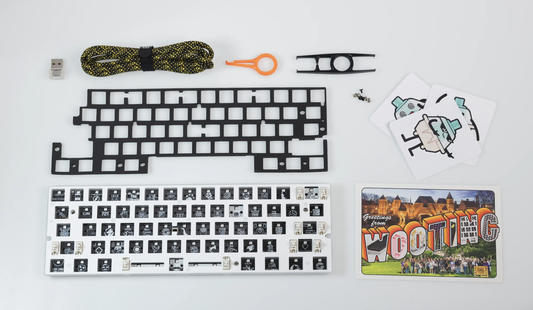
For the Wooting 60HE V2 Module, use Wootility. You can launch the web version in a supported Chrome-based browser, such as Chrome or Edge, or download the desktop application from the same page.
META60 — Web Driver
For the META60 Dual Star PCB Inner Kit, use the configuration page linked below. Connect your assembled keyboard to your computer, then follow the on-screen instructions to get started.
RAKKA60 — Web Driver
For the RAKKA 60 V2 ATLAS Magnetic Keyboard PCB Inner Kit, use the RAKKA configuration page linked below. Connect your assembled keyboard to your computer, then follow the on-screen instructions.
MEETKB MX60 HE — Web Driver
For the MEETKB MX60 HE, use the MEETKB configuration page linked below. Connect your assembled keyboard to your computer, then follow the on-screen instructions to get started.
AE61 Pro & AE64 Pro — Web Driver
For the AE61 Pro and AE64 Pro, use the shared configuration page linked below. Connect your assembled keyboard to your computer, then follow the on-screen instructions to get started.
Open AE61 Pro & AE64 Pro Driver →
Need Help Identifying Your PCB?
Contact Keyzen Studio with your order number and the product name or PCB option shown in your order. We’ll help you find the right software for your build.